 Events
Event check-in by QR code or name, right at the door.
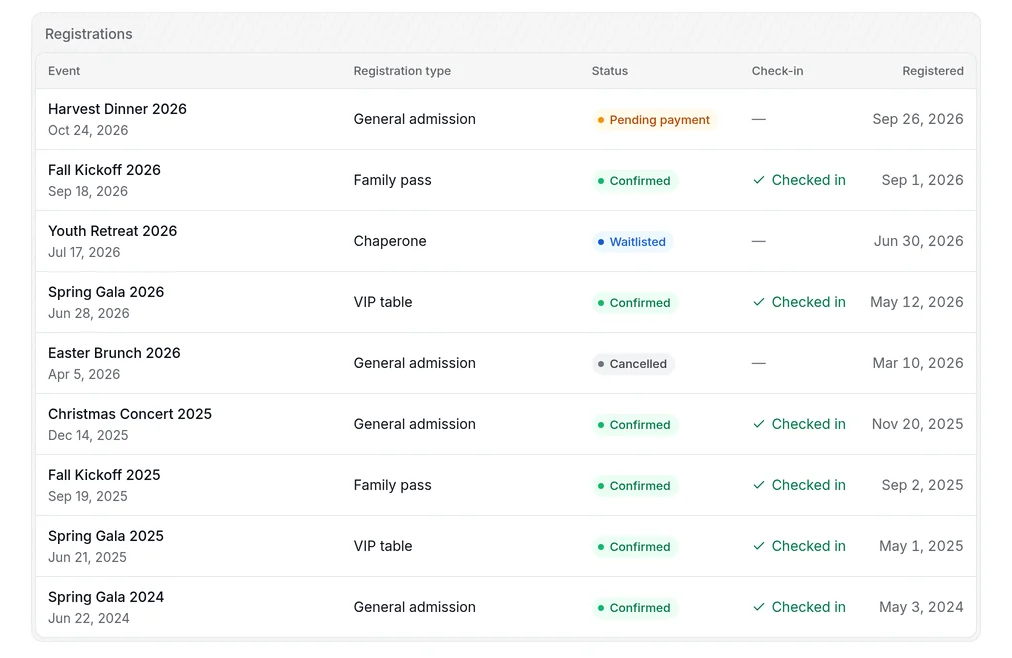
Volunteers scan a QR code or search a name. Every check-in lands on the family’s record, event after event.
How does QR code event check-in work?
Each member has their own QR code in the Bless member portal. At the door, a volunteer scans the code or searches the person’s name, and the guest is checked in. The event dashboard shows a live headcount, and every check-in is saved on the family’s record for the next event.
- Part of
- Bless Events
- Available on
- Every Bless Events plan, from $99 a month
- Payment fee
- $0.30 per checkout plus Stripe, never a percentage
- Payouts
- Your own Stripe account, in your bank the next business day
Check-in, in detail.
- QR codes
- Every member has their own QR code in the member portal. Scan it at the door and they are in.
- Quick name search
- No code? Search a name and check them in by hand.
- A live headcount
- The event dashboard shows how many people have checked in against how many registered.
- A door check-in screen
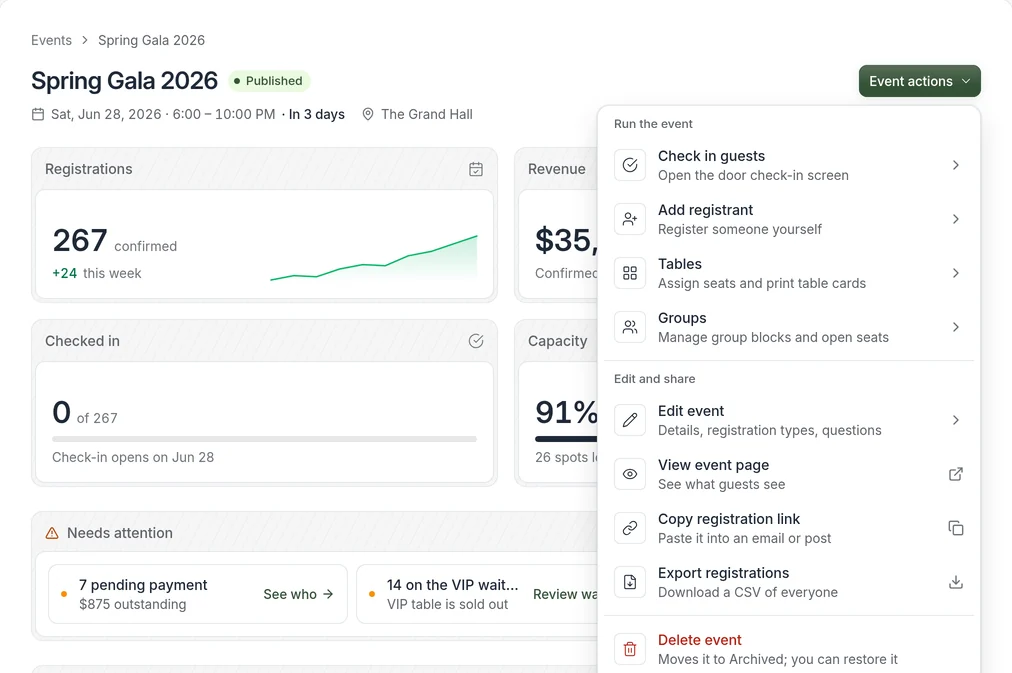
- Open check-in from the event’s actions menu and hand the screen to your volunteers.
- Tables and seats
- Assign seats and print table cards before the night starts.
- History that sticks
- Each check-in is saved on the person’s record, so you know who actually came.
Everything for the night, one menu away.
The event’s actions menu opens the door check-in screen, adds a walk-in registrant, assigns tables, and exports your list.
- Check in guests from the door screen
- Add a registrant on the spot
- Assign seats and print table cards
Guides on check-in.
Check-in questions.
Don’t see yours? Talk to our team. A real person will answer.
How does check-in work?
Scan the QR code from a guest’s member portal, or search their name at the door. You see a live headcount as people arrive.
Can we add someone who walks in?
Yes. Add a registrant from the event’s actions menu, even on the day.
Do check-ins show up later?
Yes. Each check-in is saved on the person’s record and shows in their registration history.
More answers in the help center.